
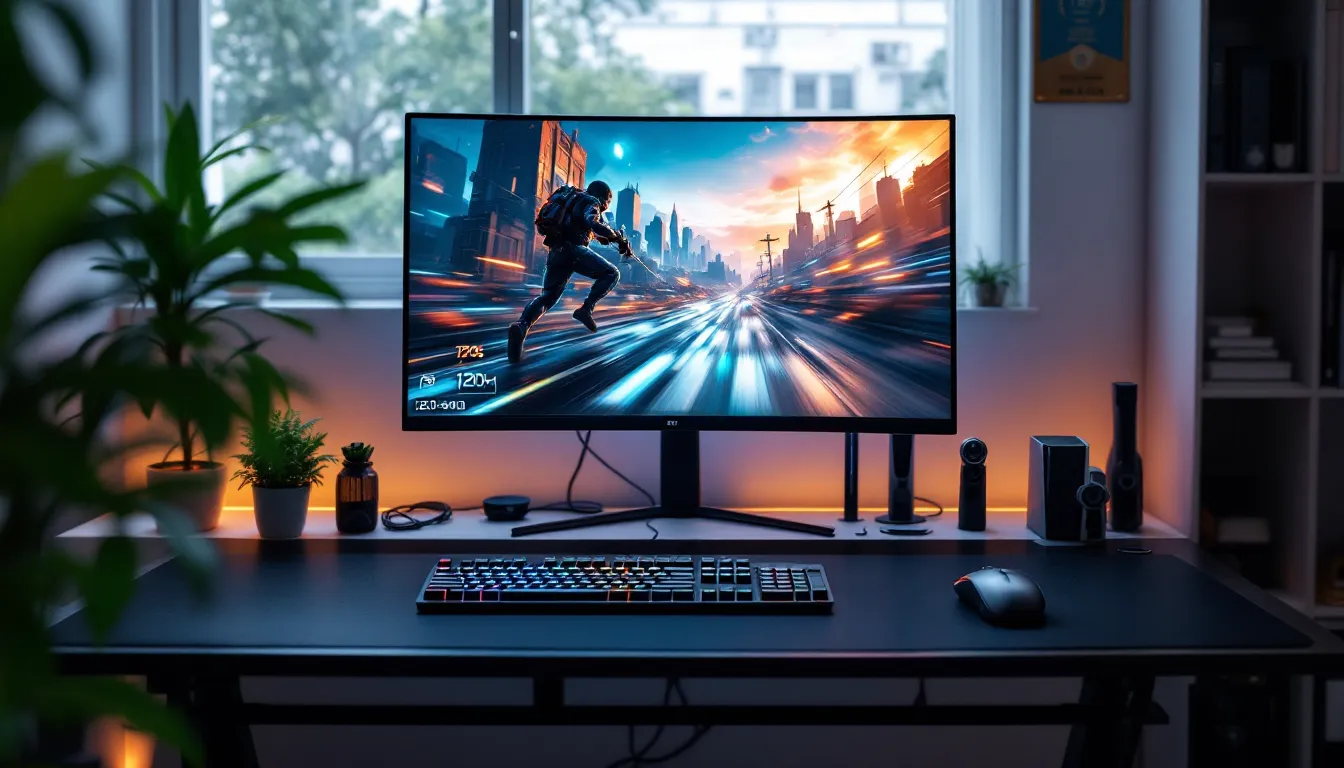
A few years back, 120Hz was the enthusiast’s choice, now it’s the baseline for anyone serious about gaming. Whether you’re grinding ranked matches in Valorant, exploring open worlds in the latest RPGs, or trying to squeeze every advantage out of your PS5, the jump from 60Hz to 120Hz changes how games feel in your hands.
But there’s more to picking a 120Hz monitor than just checking the refresh rate spec. Panel type, response time, adaptive sync support, and even how you plan to use it (competitive FPS vs casual single-player) all shift what you should prioritize. This guide breaks down everything you need to know about 120Hz gaming monitors in 2026: what they offer, who benefits most, and how to avoid the common pitfalls that trip up first-time buyers.
Key Takeaways
- A 120Hz gaming monitor cuts frame time in half compared to 60Hz, delivering smoother motion, reduced motion blur, and faster visual feedback that translates to better competitive performance in shooters and fighting games.
- For PC gamers, achieving 120Hz requires mid-range GPUs at 1080p (RTX 4060+) or high-end cards at 1440p/4K, while console players (PS5/Xbox Series X/S) need HDMI 2.1 cables to access 120Hz output on compatible titles.
- IPS panels offer the best balance for 120Hz gaming in 2026, with modern models achieving 1ms response times and excellent color accuracy, while adaptive sync (G-Sync or FreeSync) should be verified to match your GPU ecosystem.
- 1440p at 120Hz is the optimal resolution for most PC gamers, offering superior sharpness over 1080p without the GPU demands of 4K, and it works well on 27-inch displays and both current-gen consoles.
- Common buyer mistakes include overlooking HDMI 2.1 compatibility for console gaming, trusting manufacturer spec claims over professional reviews, and assuming higher refresh rates automatically provide better gaming experiences than well-implemented 120Hz monitors with quality panel technology.
- First-person shooters, fighting games, and racing sims benefit most from 120Hz gaming monitors, while genres like turn-based strategy and visual novels see minimal competitive advantages from the higher refresh rate.
What Is a 120Hz Gaming Monitor and Why Does It Matter?
Understanding Refresh Rates in Gaming
Refresh rate measures how many times per second a monitor redraws the image on screen, expressed in hertz (Hz). A 120Hz gaming monitor refreshes the display 120 times per second, meaning it can show up to 120 frames per second (FPS) if your GPU or console can deliver that frame rate.
Here’s why that matters: most standard displays run at 60Hz, which caps visual updates at 60 FPS. Even if your gaming rig pushes 120 FPS, a 60Hz panel will only show half those frames, leaving performance on the table. Higher refresh rates reduce the time between frames, which translates to smoother motion, less perceptible stutter, and more responsive gameplay.
Refresh rate isn’t just about seeing more frames, it’s about reducing the delay between your input (mouse click, button press) and the visual feedback on screen. That latency reduction becomes critical in fast-paced games where reaction time determines outcomes.
120Hz vs 60Hz: The Real-World Performance Difference
The jump from 60Hz to 120Hz halves frame time from 16.67ms to 8.33ms. That might sound marginal on paper, but the perceptual difference is immediate and significant. Panning the camera in any game feels smoother, animations appear more fluid, and fast-moving objects become easier to track.
In competitive shooters like Apex Legends or Call of Duty: Warzone, the advantage goes beyond aesthetics. Players using 120Hz displays report more accurate target tracking during strafing, clearer visibility during rapid turns, and fewer “ghost” images trailing fast movements. This isn’t placebo, it’s physics. Halving the frame time means visual information updates twice as quickly, giving your brain fresher data to process.
For single-player games, the benefit shifts toward immersion and comfort. Smooth camera movement in third-person action games or exploration titles reduces eye strain during long sessions and makes the game world feel more responsive to your inputs. Even genres like RPGs and strategy games benefit from the fluidity during panning or cursor movement, though the advantage is less pronounced than in twitch-based genres.
Key Benefits of 120Hz Monitors for Gamers
Reduced Motion Blur and Smoother Visuals
Motion blur on displays comes from two sources: pixel response time and sample-and-hold behavior. While 120Hz doesn’t eliminate pixel transition times (that’s determined by panel technology), it does reduce sample-and-hold blur by cutting frame persistence in half compared to 60Hz.
The result? Moving objects across the screen, whether it’s a player model sprinting across your crosshairs or scenery whipping past during a racing game, appear sharper and more defined. This clarity improvement is especially noticeable in games with fast horizontal or vertical motion. Many gamers describe the experience as the game “coming into focus” after switching from 60Hz.
Paired with a panel that has strong response times (more on that later), 120Hz delivers a visual experience that’s noticeably cleaner than standard displays, even if you’re not chasing competitive rankings.
Competitive Advantage in Fast-Paced Games
In competitive multiplayer games, milliseconds matter. A 120Hz display reduces system latency (the time from input to photon emission) compared to 60Hz, giving players an edge in reaction-dependent scenarios.
Consider a firefight in Valorant or CS2. At 60Hz with 60 FPS, there’s an average 8.3ms delay between frames. At 120Hz with 120 FPS, that drops to roughly 4.2ms. Combine that with reduced motion blur, and you get clearer, faster visual feedback, which translates to more accurate flicks, better tracking, and improved situational awareness during chaotic engagements.
Professional esports teams and hardware analysts consistently cite higher refresh rates as one of the most impactful upgrades for competitive gaming, often ranking it above resolution or color accuracy for twitch-based titles.
Enhanced Console Gaming Experience
Both the PS5 and Xbox Series X/S support 120Hz output on compatible titles, making 120Hz monitors highly relevant for console gamers in 2026. Games like Call of Duty: Modern Warfare III, Fortnite, Rocket League, and Halo Infinite offer 120Hz modes that deliver smoother gameplay compared to their 60Hz counterparts.
On console, 120Hz modes often come with trade-offs: reduced resolution (dropping from 4K to 1440p or 1080p) or dialed-back graphical settings. But for competitive multiplayer, the smoother frame delivery is usually worth the visual concessions. The tactile difference is immediate, aiming feels snappier, movement more fluid, and the overall experience more responsive.
To take advantage of 120Hz on consoles, you’ll need an HDMI 2.1 connection (or HDMI 2.0 for 1080p120). Most 120Hz monitors released in 2024 and later include at least one HDMI 2.1 port, but it’s worth double-checking specs before buying.
Who Should Upgrade to a 120Hz Gaming Monitor?
PC Gamers: Hardware Requirements and Compatibility
To fully use a 120Hz monitor on PC, your GPU needs to consistently push 120 FPS in the games you play. That’s achievable at 1080p with mid-range GPUs like the NVIDIA RTX 4060 or AMD RX 7600 in esports titles (Valorant, CS2, League of Legends, Overwatch 2). For AAA games at 1080p120, you’re looking at higher-tier cards like the RTX 4070 or RX 7700 XT.
At 1440p120, GPU demands scale up significantly. Competitive shooters remain accessible with upper mid-range hardware, but demanding single-player titles (Cyberpunk 2077, Starfield, modern Assassin’s Creed games) will require high-end GPUs like the RTX 4080 or RX 7900 XT to maintain 120 FPS with high settings.
Connection matters too. DisplayPort 1.4 handles 1080p and 1440p at 120Hz without issue. For 4K120, you’ll need DisplayPort 1.4 with DSC (Display Stream Compression) or HDMI 2.1. Most modern GPUs from 2022 onward support these standards, but older cards may be limited.
If your current hardware can’t hit 120 FPS consistently, a 120Hz monitor still offers value. Adaptive sync technologies (G-Sync, FreeSync) smooth out frame pacing even at fluctuating frame rates between 60-120 FPS, delivering a better experience than a locked 60Hz display.
Console Gamers: PS5, Xbox Series X/S Support
PS5 and Xbox Series X/S made 120Hz gaming mainstream for console players. Both systems support 120Hz output via HDMI 2.1, though game availability and implementation vary.
As of March 2026, over 150 titles support 120Hz modes on these consoles, spanning competitive shooters, racing games, fighting games, and select action titles. Performance modes in many games now target 120 FPS at reduced resolution (typically 1080p or 1440p), prioritizing fluidity over pixel count.
Xbox Series X/S supports 1440p120 and 4K120 (though few games hit native 4K at 120 FPS). PS5 supports similar resolutions, with VRR (Variable Refresh Rate) support added via firmware in 2022. For console gamers, a 1080p or 1440p 120Hz monitor hits the sweet spot for performance and cost.
One caveat: not every game offers 120Hz modes, and implementation quality varies. Some titles deliver genuine 120 FPS gameplay, while others use frame interpolation or drop significant visual quality. Checking game-specific performance analyses helps set expectations.
Casual vs Competitive Players: Is It Worth It?
For competitive players in shooters, fighting games, or racing sims, 120Hz is a no-brainer. The reduction in motion blur and input lag provides measurable advantages that translate to better performance.
Casual players have a different cost-benefit equation. If you primarily play single-player RPGs, strategy games, or story-driven adventures, the jump from 60Hz to 120Hz enhances fluidity and comfort but doesn’t fundamentally change gameplay. It’s a quality-of-life upgrade rather than a competitive necessity.
That said, once you’ve experienced 120Hz, going back to 60Hz feels noticeably choppier, even in slower-paced games. If you have the hardware to support it and your budget allows, 120Hz improves the experience across all genres. But if you’re on a tight budget and don’t play competitive titles, investing in better resolution, color accuracy, or panel quality might deliver more noticeable benefits.
Essential Features to Look for in a 120Hz Gaming Monitor
Panel Types: IPS, VA, and TN Explained
Panel technology affects color accuracy, viewing angles, contrast, and response time. Each type has trade-offs.
IPS (In-Plane Switching) panels offer the best color accuracy and widest viewing angles. Modern IPS panels have improved response times significantly, with many gaming-focused models hitting 1ms gray-to-gray (GtG) at higher overdrive settings. IPS is ideal for gamers who value image quality and play a mix of competitive and single-player games. The main downside: lower contrast ratios (typically 1000:1) compared to VA.
VA (Vertical Alignment) panels deliver superior contrast ratios (3000:1 or higher), producing deeper blacks and better image depth in dark scenes. Response times on VA panels traditionally lagged behind IPS, but 2025-2026 models have narrowed the gap with improved pixel overdrive. VA is a solid choice for immersive single-player games, though competitive players may notice slightly more ghosting in fast motion compared to IPS or TN.
TN (Twisted Nematic) panels were once the go-to for competitive gaming due to their lightning-fast response times (sub-1ms GtG). But, they suffer from poor color reproduction and narrow viewing angles. As IPS response times have improved, TN has largely fallen out of favor except in ultra-budget or ultra-high-refresh-rate (360Hz+) scenarios. For most gamers in 2026, IPS strikes the best balance.
Response Time and Input Lag Considerations
Response time measures how quickly pixels change from one color to another, typically reported as gray-to-gray (GtG) transitions. Lower response times reduce ghosting and trailing in fast-moving scenes. For 120Hz gaming, aim for response times of 5ms GtG or lower. Many modern gaming monitors advertise 1ms GtG, though this often requires aggressive overdrive settings that can introduce inverse ghosting (coronas or halos around moving objects).
Real-world response time performance varies by panel and overdrive implementation. Reviews from testing sites like Tom’s Hardware provide measured pixel response data that’s more reliable than manufacturer claims.
Input lag is the delay between receiving a signal from your GPU/console and displaying it on screen. Total input lag includes processing delay (scaler, image processing) and pixel response time. For gaming, input lag should be under 10ms. Most dedicated gaming monitors in 2026 measure below 5ms, but it’s worth checking reviews, some budget models with heavy image processing can creep into the 15-20ms range, which becomes perceptible in competitive play.
Adaptive Sync Technologies: G-Sync and FreeSync
Adaptive sync synchronizes your monitor’s refresh rate with your GPU’s frame output, eliminating screen tearing and reducing stutter when frame rates fluctuate. Two main standards dominate: NVIDIA G-Sync and AMD FreeSync.
G-Sync (and its G-Sync Compatible certification) works with NVIDIA GPUs. G-Sync monitors include dedicated hardware modules that provide tight sync control and often additional features like variable overdrive. G-Sync Compatible monitors use the VESA Adaptive-Sync standard and work with NVIDIA GPUs but lack the dedicated module.
FreeSync is AMD’s adaptive sync solution, based on the open VESA Adaptive-Sync standard. FreeSync monitors work with AMD GPUs and, since 2019, with NVIDIA GPUs (if G-Sync Compatible certified). FreeSync Premium adds low framerate compensation (LFC) for smoother performance below the minimum sync range.
In 2026, most gaming monitors support FreeSync, with many also carrying G-Sync Compatible certification. Unless you’re chasing the absolute premium experience with a high-end NVIDIA GPU, FreeSync Premium or G-Sync Compatible monitors deliver excellent adaptive sync performance at lower cost than full G-Sync modules.
Make sure the adaptive sync range covers your typical frame rates. Ideally, look for ranges starting at 48Hz or lower (LFC handles below that) and topping out at the monitor’s max refresh (120Hz).
Resolution Options: 1080p, 1440p, or 4K at 120Hz
Resolution choice depends on your hardware, budget, and priorities.
1080p (1920×1080) at 120Hz is the most accessible option. Mid-range GPUs handle 120 FPS in most games, and console 120Hz modes often target 1080p. It’s the best choice for competitive gaming where frame rate matters more than pixel density. At screen sizes of 24 inches, 1080p looks sharp: at 27 inches, some users notice pixelation.
1440p (2560×1440) at 120Hz is the sweet spot for many PC gamers in 2026. It offers a noticeable sharpness upgrade over 1080p without the GPU demands of 4K. Modern upper mid-range GPUs can drive 1440p120 in competitive titles, and it scales well on 27-inch displays. Both PS5 and Xbox Series X support 1440p output, making it console-friendly too.
4K (3840×2160) at 120Hz is the premium option, demanding high-end GPUs (RTX 4080/4090, RX 7900 XTX) to maintain 120 FPS in modern AAA games. It’s stunning for single-player experiences and content consumption but overkill for competitive gaming where most players dial down settings for maximum FPS anyway. If you’re gaming on console, very few titles run native 4K at 120 FPS, most drop to 1440p or use upscaling.
For most gamers, 1440p120 offers the best balance of visual quality and performance in 2026.
120Hz vs 144Hz and Higher Refresh Rates: Making the Right Choice
When 120Hz Is the Sweet Spot
120Hz hits a practical balance between performance, hardware requirements, and cost. It’s high enough to deliver smooth, responsive gameplay across most genres and accessible enough that mid-range hardware can drive it at 1080p or 1440p.
For console gamers, 120Hz is the target standard, PS5 and Xbox Series X/S support 120Hz output, but not higher refresh rates. If you game primarily on console, there’s zero benefit to buying a 144Hz or 240Hz monitor since your system caps at 120Hz.
Even for PC gamers, 120Hz makes sense in several scenarios:
- You play a mix of competitive and single-player games and want smooth performance across both.
- Your GPU sits in the mid-range tier (RTX 4060-4070, RX 7600-7700 XT) and consistently hits 120 FPS but struggles to push 144+.
- You’re gaming at 1440p or 4K, where higher frame rates become exponentially harder to achieve.
- You prioritize features like high resolution or better color accuracy over chasing diminishing returns above 120Hz.
120Hz also tends to be the threshold where price-to-performance starts to favor quality over raw refresh rate. You’ll often find better panel quality, color accuracy, and build in a premium 120Hz monitor than in a budget 165Hz or 240Hz model.
When to Consider 144Hz, 165Hz, or 240Hz Instead
If you’re a competitive PC gamer who primarily plays esports titles (Valorant, CS2, Apex Legends, Overwatch 2, Rainbow Six Siege), higher refresh rates provide incremental but real advantages. Frame time drops from 8.33ms at 120Hz to 6.94ms at 144Hz, 6.06ms at 165Hz, and 4.17ms at 240Hz.
These differences become harder to perceive as you climb the refresh rate ladder, the jump from 60Hz to 120Hz is far more noticeable than 144Hz to 240Hz, but competitive players report measurable improvements in tracking smoothness and reaction time at higher refresh rates.
You should consider 144Hz or higher if:
- You exclusively or primarily play competitive shooters, fighting games, or fast-paced multiplayer titles.
- Your GPU can consistently deliver 144+ FPS in the games you play (typically high-end cards at 1080p, or flagship cards at 1440p).
- You’re chasing every possible edge in ranked or tournament play.
- You’re gaming at 1080p, where hitting high frame rates is more achievable.
Reviews and benchmarks from sources like TechRadar break down performance differences across refresh rate tiers, helping identify whether the jump justifies the cost for your use case.
For most gamers, especially those on console or playing a variety of genres, 120Hz delivers 90% of the benefit at a lower cost and with more forgiving hardware requirements.
Common Mistakes to Avoid When Buying a 120Hz Monitor
Not checking HDMI version for console gaming. Many 120Hz monitors include HDMI 2.0 ports, which max out at 1080p120. If you’re gaming on PS5 or Xbox Series X/S and want 1440p or 4K at 120Hz, you need HDMI 2.1. Budget monitors often skimp on this, so verify port specs before buying.
Ignoring actual response time performance. Manufacturers advertise “1ms response time” based on best-case scenarios with maximum overdrive, which often introduces inverse ghosting. Real-world response times vary by panel. Check professional reviews that measure pixel response with oscilloscopes rather than trusting spec sheets.
Buying a 27-inch or larger 1080p monitor. At 27 inches, 1080p’s pixel density drops to around 81 PPI, making individual pixels noticeable at typical viewing distances. For screens larger than 24 inches, 1440p is the better choice for sharpness.
Overlooking adaptive sync compatibility. If you have an NVIDIA GPU, make sure the monitor supports G-Sync or is G-Sync Compatible certified. A FreeSync-only monitor might work, but you’ll miss out on tear-free gaming. Similarly, AMD GPU users should verify FreeSync support and check the VRR range.
Skipping reviews for color accuracy and uniformity. Not all IPS panels are created equal. Some budget models suffer from significant backlight bleed, poor color calibration, or panel lottery issues. Independent reviews catch these problems that spec sheets hide.
Assuming higher refresh rate automatically means better. A well-implemented 120Hz monitor with excellent response times, strong color accuracy, and good build quality will outperform a mediocre 165Hz panel with poor pixel response and washed-out colors. Features matter more than raw refresh rate numbers.
Forgetting about ergonomics and connectivity. Height adjustment, tilt, swivel, and pivot options matter for long gaming sessions. Also verify the monitor includes the ports you need, some budget models ship with limited DisplayPort or HDMI options, forcing you to buy adapters.
Setting Up and Optimizing Your 120Hz Gaming Monitor
Enabling 120Hz on Windows and Gaming Consoles
Windows PC: Right-click desktop → Display settings → Advanced display → Choose your monitor → Refresh rate dropdown → Select 120Hz. If 120Hz doesn’t appear, verify your cable supports the bandwidth (DisplayPort 1.4, HDMI 2.0 for 1080p120, HDMI 2.1 for 1440p/4K120) and that your GPU drivers are up to date. For NVIDIA GPUs, you can also enable 120Hz via NVIDIA Control Panel under “Change Resolution.”
PS5: Settings → Screen and Video → Video Output → 120Hz Output → Automatic. Make sure you’re using an HDMI 2.1 cable and the monitor supports 120Hz via HDMI. Some games require enabling performance mode in-game to activate 120Hz.
Xbox Series X/S: Settings → General → TV & display options → Refresh rate → 120Hz. The console will automatically detect if your monitor supports 120Hz. Like PS5, you may need to enable performance mode in individual game settings.
After enabling 120Hz, verify it’s active using built-in test tools like www.testufo.com, which displays smooth motion tests that clearly show whether 120Hz is functioning.
Calibration Tips for Best Picture Quality
Out-of-the-box color settings on gaming monitors are often oversaturated or poorly balanced. Basic calibration improves image quality across gaming and general use.
Brightness: Set to 120-150 cd/m² (nits) for typical room lighting. Most monitors ship at 250+ nits, which causes eye strain in darker environments. Use a test pattern or hardware calibrator to dial it in.
Contrast: Start at default (usually 50-70) and adjust so blacks appear deep without crushing shadow detail. In-game scenes with dark areas are good calibration references.
Color temperature: “Warm” or “6500K” preset typically looks more natural than “Cool,” which skews blue. If your monitor offers RGB controls, fine-tune to taste, reducing blue slightly reduces eye strain during long sessions.
Overdrive/response time setting: Most gaming monitors offer multiple overdrive levels (Off, Normal, Fast, Extreme). Enable overdrive to reduce ghosting, but avoid the highest setting if you notice inverse ghosting (bright halos trailing objects). Test with fast-moving scenes in-game or motion test sites.
Game mode / low latency mode: Enable any “game mode” or “low latency” presets, which disable unnecessary image processing that adds input lag. On some monitors, this also locks out certain picture adjustments, so configure other settings first.
For serious color work, consider a hardware calibrator like the X-Rite i1Display or Datacolor SpyderX, though it’s overkill for pure gaming.
Troubleshooting Common 120Hz Display Issues
120Hz option missing in settings: Check cable quality (cheap cables often can’t handle 120Hz bandwidth), verify GPU drivers are current, and confirm the port you’re using supports 120Hz (some monitors limit 120Hz to specific ports).
Screen tearing even though adaptive sync: Ensure adaptive sync is enabled both in monitor OSD and in GPU control panel (G-Sync/FreeSync settings). Also verify your frame rate stays within the monitor’s VRR range. Some games require V-Sync disabled for adaptive sync to function properly.
Flickering or black screen: Often caused by bandwidth issues or unstable adaptive sync. Try lowering color depth from 10-bit to 8-bit, or disabling HDR if active. Update monitor firmware if available.
Ghosting or trailing: Adjust overdrive settings in monitor OSD. If ghosting persists on all overdrive levels, the panel may have slow pixel response, an inherent hardware limitation.
Input lag feels high: Disable all image processing (motion smoothing, dynamic contrast, eco modes) and enable game/low latency mode. On PC, ensure Windows Game Mode is active. For console, verify 120Hz mode is enabled both system-wide and in-game.
Color banding or washed-out image: Check that you’re using full RGB range (0-255 on PC, often called “Full” on consoles vs “Limited”). Also verify color depth is set to highest supported (8-bit or 10-bit) in GPU settings.
Top Game Genres That Benefit Most from 120Hz
First-Person Shooters (FPS): The single biggest beneficiary of 120Hz. Games like Valorant, CS2, Call of Duty, Apex Legends, and Overwatch 2 become measurably easier to play with smoother target tracking, reduced motion blur during quick turns, and lower latency between input and visual feedback. Competitive players consider 120Hz the minimum standard.
Fighting Games: Frame-perfect inputs and tight reaction windows make fighting games highly sensitive to display latency. 120Hz reduces total system latency and makes animations appear smoother, helping players recognize attack startups faster. Games like Street Fighter 6, Tekken 8, and Guilty Gear Strive feel noticeably more responsive.
Racing and Driving Sims: High-speed movement and rapid directional changes benefit immensely from 120Hz. The increased refresh rate makes it easier to judge braking points, track corner apexes, and react to opponents’ movements. Sim racers in titles like Assetto Corsa Competizione, iRacing, and F1 games report improved consistency and control.
Battle Royale and Tactical Shooters: Fortnite, PUBG, Warzone, and Rainbow Six Siege combine fast gunfights with the need for quick environmental scanning. 120Hz enhances both aspects, helping spot distant movement during rotations and improving accuracy during close-quarters combat.
Action and Hack-and-Slash Games: Fast-paced action titles like Devil May Cry, Bayonetta, and souls-likes benefit from smoother animations and more responsive dodge/parry timing. While not as critical as in competitive shooters, the fluidity improves both gameplay feel and visual enjoyment.
Platformers and Rhythm Games: Precise timing and fast visual feedback make 120Hz valuable in platformers (Celeste, Hollow Knight) and rhythm games (Beat Saber, rhythm FPS hybrids). The reduced frame time can make the difference between hitting tight timing windows and missing them.
Sports Games: FIFA, Madden, NBA 2K, and other sports titles gain from smoother player movement and more responsive controls. The difference is less dramatic than in shooters, but dedicated players notice improved timing on skill moves and defensive reactions.
Genres that benefit least from 120Hz include turn-based strategy, card games, visual novels, and slower-paced RPGs, though even these see minor quality-of-life improvements from smoother UI animations and camera movement.
Conclusion
120Hz gaming monitors have shifted from enthusiast luxury to mainstream standard, and for good reason. The jump from 60Hz delivers immediate, tangible improvements in motion clarity, responsiveness, and competitive performance across nearly every genre. Whether you’re running a mid-tier gaming PC or maxing out your PS5 or Xbox Series X/S, 120Hz unlocks smoother, more immersive gameplay that’s hard to walk back from once experienced.
The right 120Hz monitor depends on your specific setup and priorities. Console players should prioritize HDMI 2.1 support and stick with 1080p or 1440p resolutions where 120Hz modes are most common. Competitive PC gamers benefit from fast IPS panels with low response times and robust adaptive sync. Players mixing competitive and single-player titles should weigh resolution, color accuracy, and overall panel quality alongside raw refresh rate.
Avoid the common pitfalls, verify cable compatibility, check real-world response time reviews, and don’t chase higher refresh rates if your hardware can’t deliver the frames to match. A well-chosen 120Hz monitor paired with proper calibration and settings will elevate your gaming for years to come.